
Automating SharePoint sites for sensitivity label training
PowerShell script that generates a SharePoint communication site for organizations deploying sensitivity label training materials.
Introduction
Deploying sensitivity labels is one thing, but the user training is a whole other problem to solve. Sensitivity label deployments need to go smoothly for several reasons: user trust equals user adoption, increase data security practices, and prevent data loss. However, many businesses technically adopt labels without adequate user training, which ends up negatively impacting overall data security. Microsoft has generic user-centric training materials which are useful to some extent, but they do not capture an organization’s specific situation.
I’ve discussed user training materials with MSPs deploying sensitivity labels to their clients. Some that I’ve worked with have found success in creating their own knowledge bases. However, this approach also lacks the organizations’ specific label scheme, use cases, and important notes. To address the problem of not having a scalable yet tailored user-training solution, I hopped into Claude Code to generate a script that accepts markdown files to create a relatively decent SharePoint communication site.
Requirements
- Microsoft.Graph.Authentication (script will check and install if not already)
- Admin permissions or the ability to consent to Graph API permissions. You can use a non-admin account, but ensure you have your admin consent workflow configured first.
- Obviously, you first need to design your label classification scheme. This includes:
- Label names & descriptions
- Label visibility
- Correct uses and incorrect uses
- Label-specific notes (if any)
- Label-specific screenshots (if any) and place into ./screenshots
- Completed overview-outline.md
- Completed troubleshooting-outline.md
- Completed labels-definition.json
Using the script
The script and dependencies can be downloaded on GitHub.
Disclaimer: This script was created with the help of Claude Opus 5. Please review it and run it in your own environment at your own risk. I’ve tested it in my personal tenant and an MDX tenant, but I can’t take responsibility for how it performs in yours.
- Edit or review my overview-outline.md (keep the markdown syntax simple as the markdown converter function only does simple conversions to webparts)
- Edit or review my troubleshooting-outline.md (follow the same QA format)
- Take screenshots of your labels, locations, and behaviors…or not 😁
- Place screenshots in ./screenshots
- Rename accordingly
- Note the path to place into labels-definition.json
- Add screenshot captions and descriptions as needed into labels-definition.json
- Complete labels-definition.json
- Here is a quick one-liner to get you started and change the TenantHostName and OwnerUpn at least
./New-LabelTrainingSite.ps1 -SiteTitle 'Sensitivity Label Knowledge Base' -SiteAlias 'sensitivitylabels' -TenantHostName 'companyname.sharepoint.com' -OwnerUpn 'placeholder@companyname.com' -LabelDefinitionPath ./labels-definition.jsonFor the OwnerUpn, if you do not use the same owner as the account you use to authenticate in the browser, the script will warn you. Graph can only show you SharePoint sites that you have access to.
- Review the results
- Review the logs as needed
label-definition.json
Be sure to fill out this JSON file as this is what builds out each label page. Below is an empty example. There is a template with examples uploaded to the dependency folder for reference.
Screenshots can be uploaded to the site with or without captions & descriptions. hc-word.png does not have a caption or description while hc-outlook.png has both.
[
  {
	"Name": "",
	"Group": "",
	"VisibleTo": "",
	"Description": "",
	"CorrectUses": ["use 1", "use 2"],
	"IncorrectUses": ["bad use 1", "bad use 2"],
	"QuickNotes": ["note 1", "note 2"],
	"Screenshots": [
	  "./screenshots/hc-word.png",
	  {
		"Path": "./screenshots/hc-outlook.png",
		"Caption": "",
		"Description": ""
	  }
	]
  }
]
Finishing touches
I designed this to be easy and scalable when deploying into different environments. However, there are a few finishing touches admins should take to personalize the site and make it their own. Let’s first navigate to the SharePoint site using the URL generated from the script.
Add site visitors
Step-by-step instructions from Microsoft
Update the navigation bar
I opted to rename Home to Overview. I added a link for labels and troubleshooting as well.
- Click on Edit navigation on the top tool bar.
- Rename Home to Overview.
- Click on the three dots to the right of Documents, Pages, and Site contents, then select Remove.
- Hover over the remaining label and click on the + button to add a link.
- Copy the labels link from the output script, paste into the Address box, type in Sensitivity labels in the Display name field and select OK.
- Repeat steps 4-5 for the troubleshooting & FAQ link.

Update the site theme
I prefer dark-themed web pages. You may be crazy if you prefer your websites to blind you, but hey, to each their own. Step-by-step instructions from Microsoft. You can also brand it up by changing the background images, adding your own site logo, and applying the company’s color scheme through site branding.
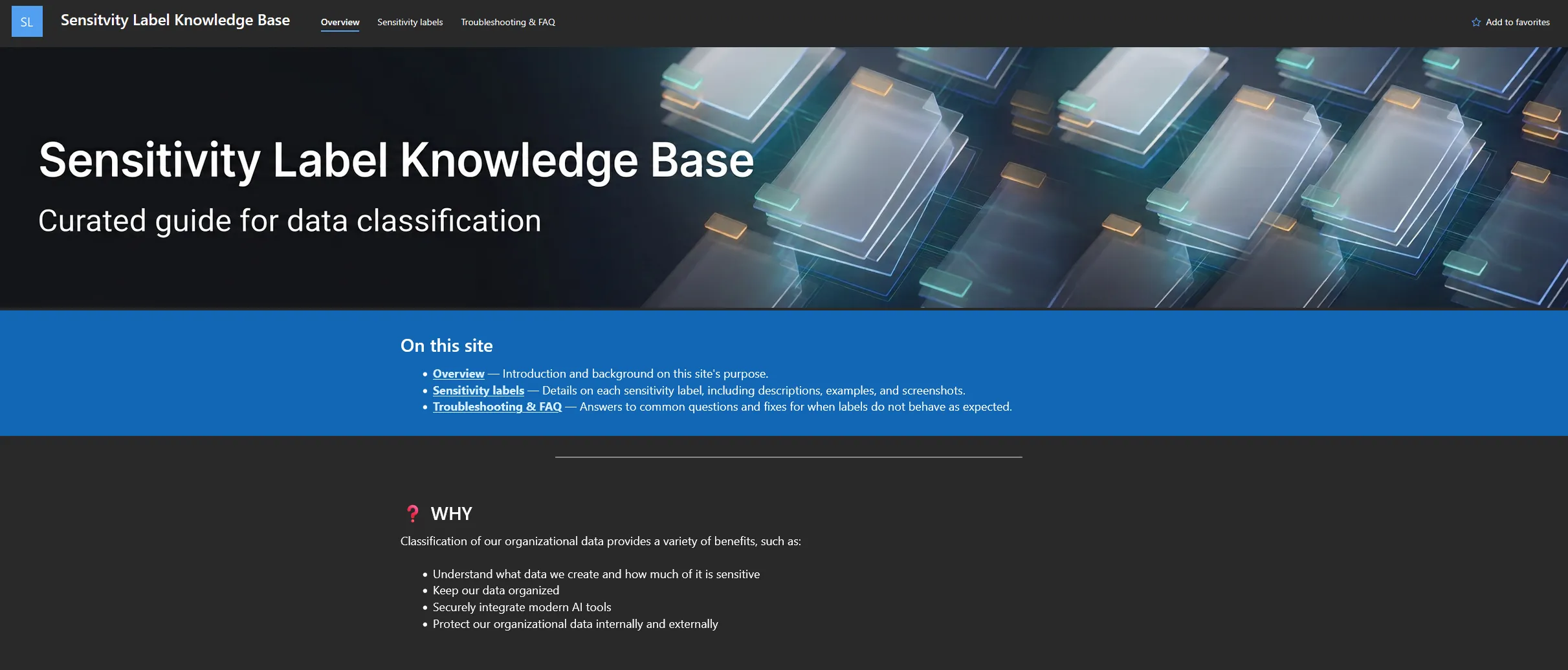
Header images
./backgrounds includes three header images just to give the sites some visuals. Feel free to place your own header images here, but ensure to change the name of your images to match the names that are provided. For size reference, these were generated at 1920x320.
What it creates
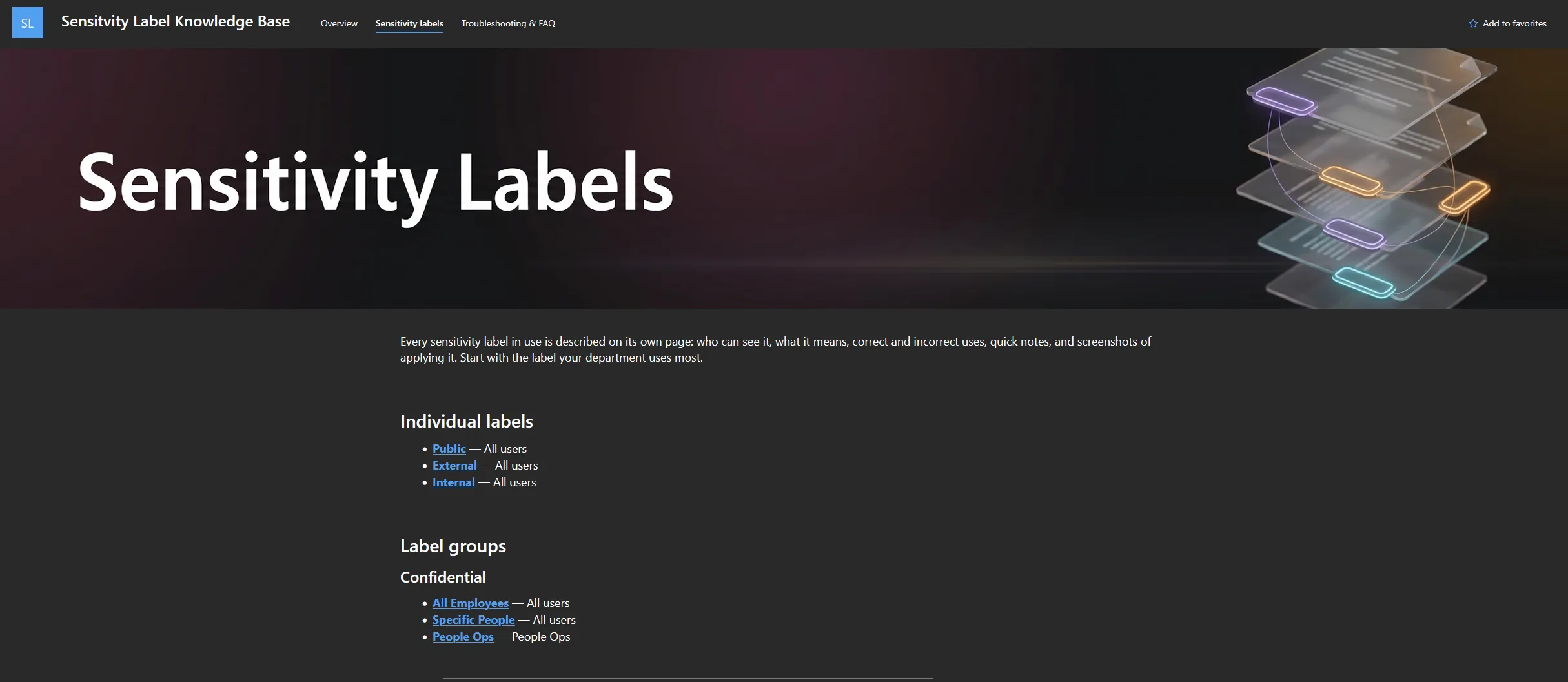
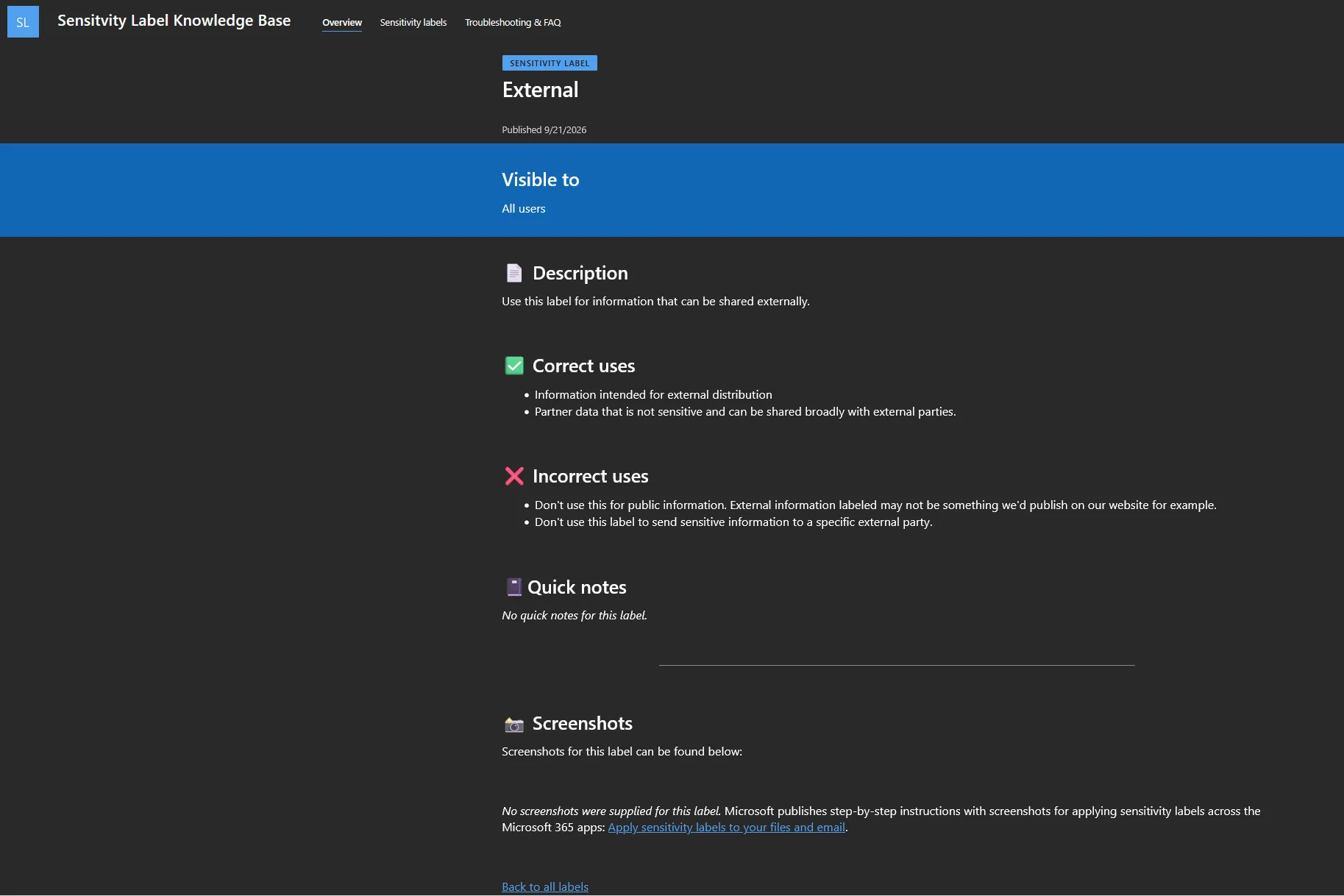
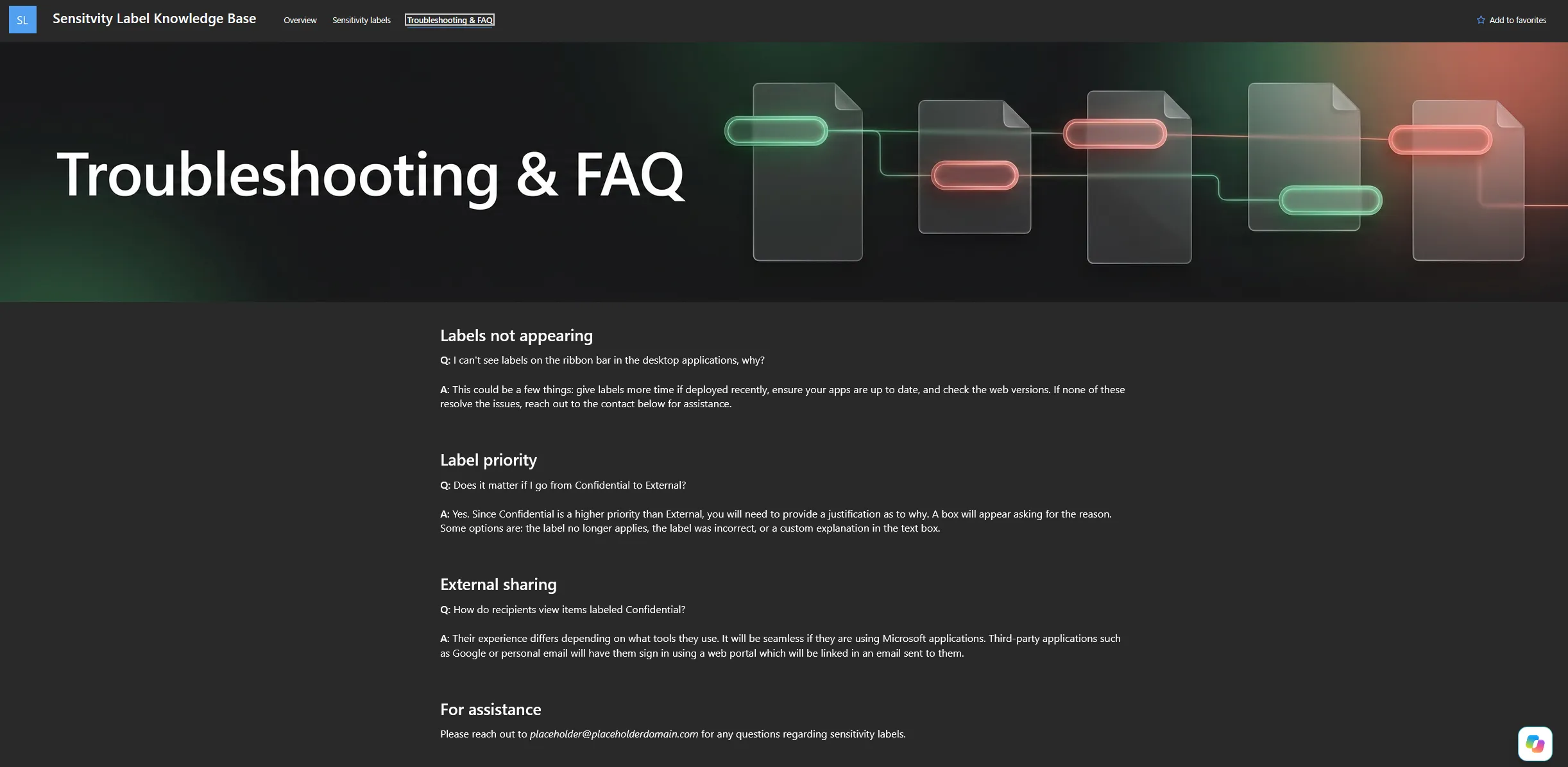
- Overview page with links to other scripted pages
- Sensitivity labels with each label page that includes notes and screenshots
- Troubleshooting & FAQ page
Conclusion
Overall, I hope this helps in creating a training site for end-users when deploying sensitivity labels into an environment. Feel free to submit any feedback on GitHub, and I’d be happy to continue developing this to make it the best it can be. For now, I think this is a great tool to get organizations started in creating a custom training site. Hope this helps. Happy labeling! 🏷️