
The basics of Copilot readiness
Let’s talk about the basics starting with SharePoint as the data boundary and an example with a sensitivity label.
Introduction
I’ve had countless conversations with SMBs on Copilot readiness. It is a much larger conversation and has way too many variables to capture in one post. However, I think many organizations have looked past the simple gotchas while diving straight into more technical solutions such as data loss prevention and insider risk management. Yes, these are important in the broad scheme of things, but I’ve had conversations with companies that don’t even have MFA deployed consistently or have their endpoints on an EDR/MDR.
Businesses need to secure the foundation that the tenant is standing on. We need MFA deployed, stronger authentication methods such as passkeys (at the time of writing this, Microsoft is removing its SMS/voice services for MFA…so better get on it 😉), endpoint management and security. SharePoint permissions and overshared content in OneDrive are the least of your worries if you have compromised identities. More on this another time.
For this post, though, let’s start with the SharePoint side of the basics…with a little bit of Purview.
Copilot out of the box
Using a tool such as Microsoft Copilot, it’s important to know how it functions and what data it actually has visibility into. For example, natively, Copilot does not have access to indexed data stored in on-premises file shares or Azure Files. For other SaaS apps, you can configure connectors in the M365 admin center to extend Copilot as needed. Out of the box, Copilot uses existing user permissions on files, downloaded files, and SharePoint & OneDrive. This is the issue that many SMBs have ignored…until now.
Microsoft Graph and the semantic index make this possible. They are the connective tissue that Copilot relies on. Both working together can quickly surface permission gaps or overshared content. This is what scares organizations. Many that I’ve talked with don’t know where to begin. To be clear, these points are highly oversimplified and it will take effort for a production tenant to get to a state where the risk is acceptable - this looks different for every business.
SharePoint is the foundation of collaboration
SharePoint is the foundation of the collaboration tools that Microsoft 365 has to offer. It is the backend of Teams and OneDrive. In fact, Exchange, SharePoint, and Teams services are so interconnected that you can’t even single them out in a Conditional Access policy without breaking things. Many SMBs that use SharePoint, Teams, and OneDrive don’t know about this synergy or deploy it with any form of governance. Over time, this causes problems and associated tech debt.
Permissions matrix
The first thing to discuss is SharePoint permissions which are different than Teams/M365 group permissions. More info on SharePoint permissions can be found here. Understanding them at a high level are just as important as deploying endpoint DLP in preventing data leakage. Here is a quick breakdown of the items I think are the most important for this discussion:
| Permission group | Used by these services | Notes | User type support |
|---|---|---|---|
| Owner | Teams, M365 groups | Syncs to site owners | Members |
| Member | Teams, M365 groups | Syncs to site members | Members and guests |
| Site admin | SharePoint | Higher privileges than site owner such as managing backend features of the site | Members and guests |
| Site owner | SharePoint | Full control - this permission does not sync to the M365/Teams Owner | Members and guests |
| Site member | SharePoint | Edit permissions - this permission does not sync to the M365/Teams Member | Members and guests |
| Site visitors | SharePoint | View only permissions | Members and guests |
| Everyone except external users | SharePoint | Automatically added to SharePoint sites marked as Public | Members |
Everyone except external users shares the entire site with…everyone in the organization. So, if a People Operations team site were set to Public, then everyone will have view-only permissions and Copilot will happily show you those items.
Understand inheritance
SharePoint sites are made of different levels, and the idea of permission inheritance should be understood before you start cleaning things up. Permissions set at the site level trickle down all the way to the file level. However, you do have the option to break inheritance on a particular level for more granular control.
I’ve seen many SharePoint environments where inheritance was broken in the past to achieve a small goal when sharing could have solved the problem. It makes things messy, so it is generally something I always recommend avoiding. The hierarchy is as follows:
- Site
- Libraries and lists
- Folders
- Files
The problem here is that if inheritance is broken on a SharePoint site somewhere, you now have more than one truth, and Copilot will not care. Sites with broken inheritance should be remediated or at least documented before deploying outside your pilot group.
Sharing in SharePoint & OneDrive
Users can share files with users and guests to collaborate. This is probably one of the largest gaps an organization has to think about before assigning Copilot licenses. Shared documents with even the view permission will allow Microsoft Copilot and Microsoft Search to see them. Now, this may not be a bad thing at the surface level, but if these overshared items are not reviewed, it may very well be.
From a data loss prevention perspective, every organization should review their SharePoint and OneDrive sharing settings at the tenant level. I’m not going to go into great detail about this now, but it can be found in the SharePoint admin center > Select Policies on the left navigation bar > Choose Sharing and review.
It’s important to note OneDrive readiness as well. If sharing settings at a tenant-wide level were not configured to an organization’s liking, you may have sensitive user documents overshared with “anyone” links. Also, I believe there is a process debt component. People tend to download and send documents over email or Teams versus creating a share link. Combine that with a lack of data labeling, and it can be devastating. Don’t forget about OneDrive. Microsoft includes a report in SharePoint Advanced Management to quickly see users with large amounts of shared data in their OneDrive.
You can limit sharing on SharePoint document libraries to only allow owners to share items. Data owners should know the SOPs on when and who their data can be shared with. Navigate to the SharePoint site > Select the gear icon in the upper right corner > Choose Site permissions and edit as needed.
Sensitivity label permissions and SharePoint
You’ve probably heard of sensitivity labels a million times by now. There is a broader conversation to have about data classification and configuring labels, but we’ll save that for another time. Let’s focus on how access control configured through labels meshes with SharePoint permissions and how Copilot interacts with them.
By now, we know that Copilot uses the user’s existing permissions to determine if it can interact with documents, but what about if we have a Confidential / All Employees label that grants all employees editor rights? Below is a quick illustration of the scenario we’ll use to test. I have a sensitivity label group and label titled SharePoint demo / All Employees:
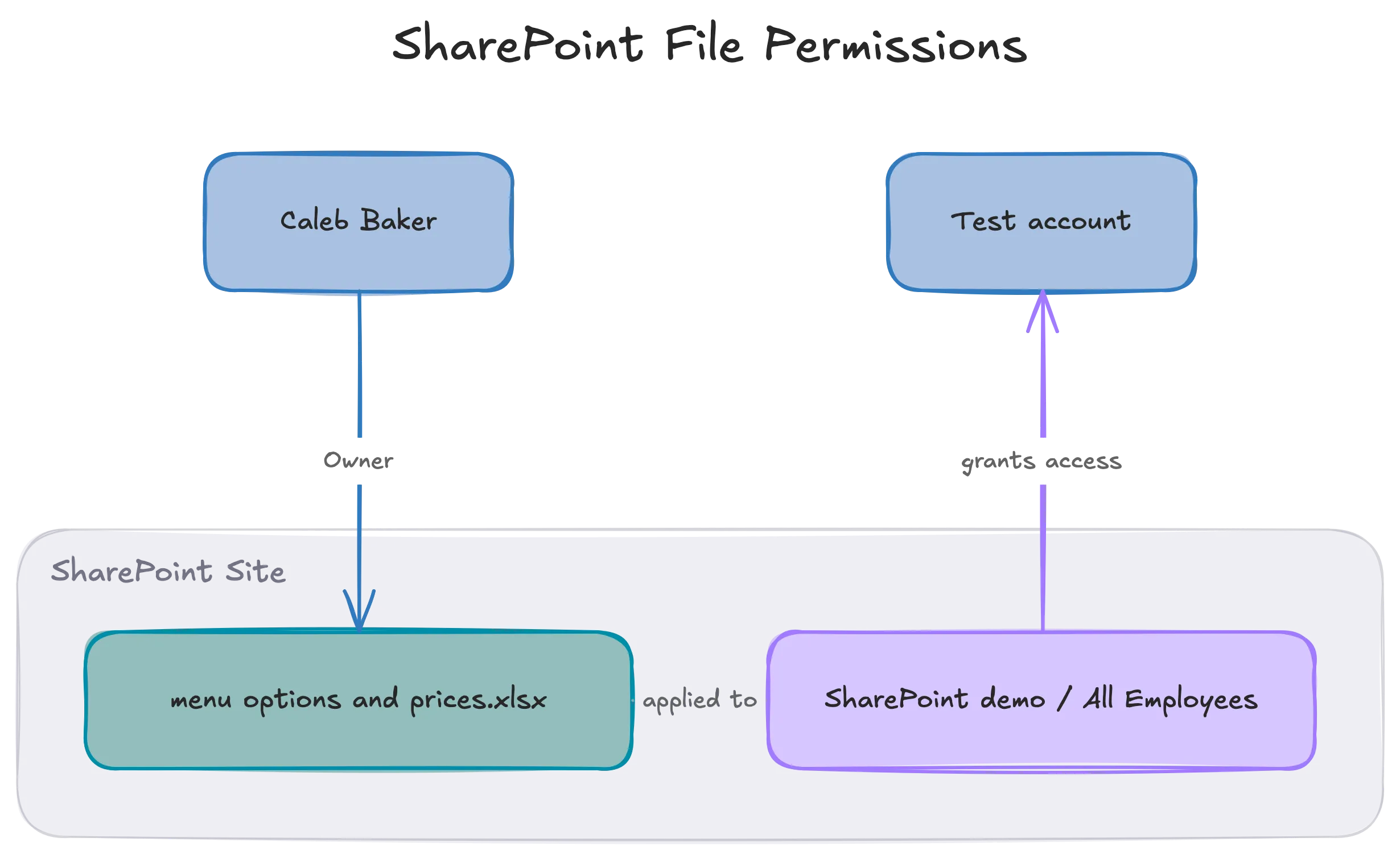
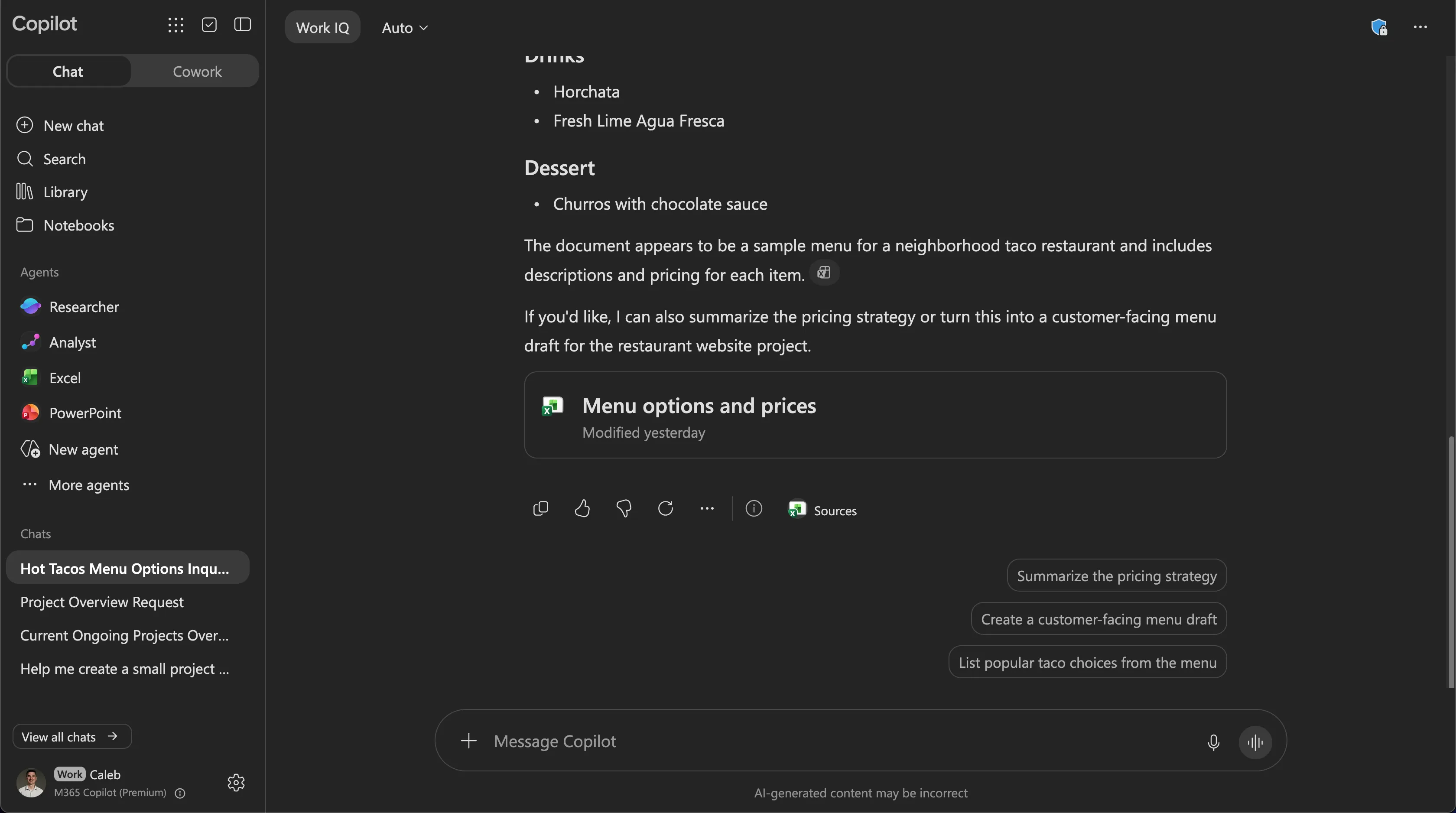
As you’d expect, my account’s Copilot found it no problem. Copilot also will extend label permissions to any new content generated with this document as noted in the upper right hand corner of the screenshot below:
Here is what the test user account experienced when searching for the file specifically in SharePoint. This is also what you’d experience if you were to use Restricted Content Discovery (RCD) on a particular SharePoint site. RCD can be used to restrict specific SharePoint sites’ content from appearing in search/Copilot searches while permissions are being reviewed. Using RCD could allow you to move forward with adoption while mitigating risks without slowing things down. More info on RCD here. Copilot obeys SharePoint permissions even though the test account technically has IRM permissions.
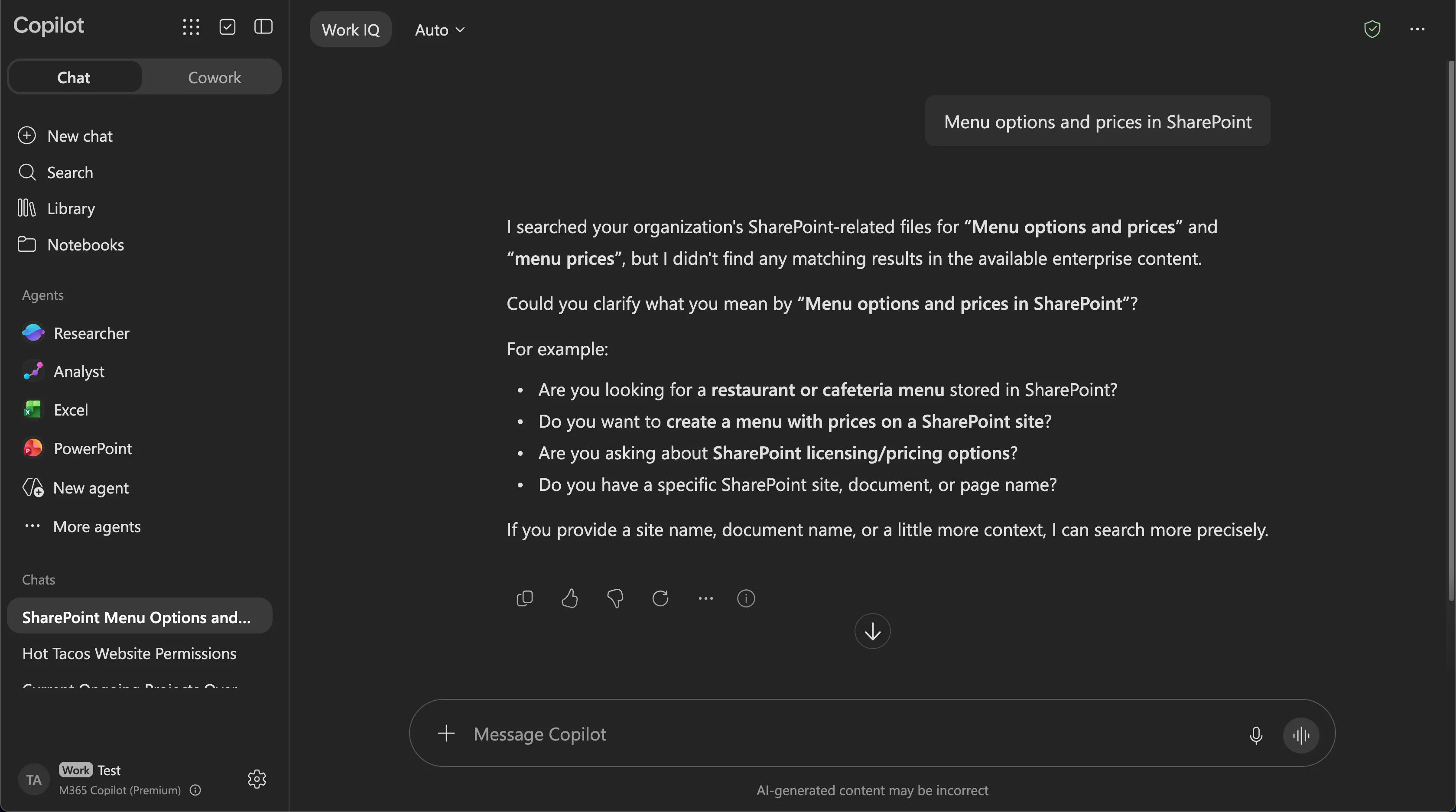
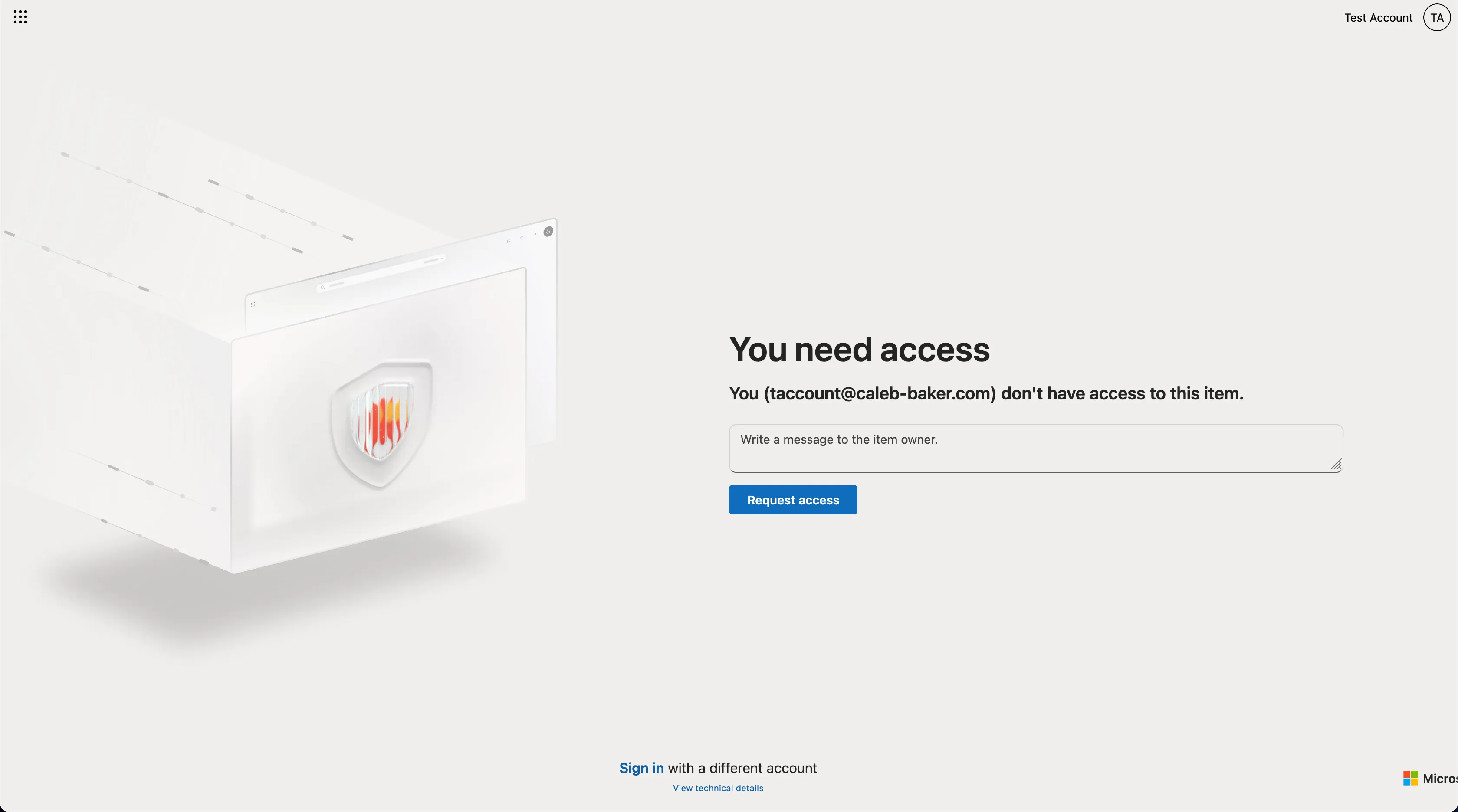
When using my account to copy the URL and paste it into my test account’s browser, I can see that I do not have access to the SharePoint site where the file is located. Now, if I were to create a dedicated sharing link, that would change things obviously. This is why it is imperative to review existing sharing links in SharePoint before deploying Copilot.
Luckily, a Copilot license includes SharePoint Advanced Management, which offers Data access governance reports where you can easily identify overshared SharePoint sites. Depending on the maturity of the business, it may be easier to see what sites to prioritize. For example, if a company has a few sites with unclear names but mostly works from an on-premises file server, it may be a bit more difficult to determine where to begin. My opinion would be first to determine if SharePoint is the file storage solution for you, plan, organize, then migrate.
This all changes if the file was outside of the SharePoint boundary. For example, if I downloaded a copy and sent it to the test account via Outlook, I’d be able to open it with editor rights as the test account (or any caleb-baker.com account). I can then upload it into my OneDrive and use Copilot on it as I wish. This is why proper configuration of sensitivity labels and user training are so critical in a Copilot readiness project.
But aren’t there now two ACLs? One in SharePoint and one in the label configuration? Microsoft has a solution in preview that extends SharePoint permissions to files downloaded/copied from the site using the RMS API through a sensitivity label. There’s an awesome just-in-time component to this as well. So, if you remove someone from site members, then their access will be revoked. This is an amazing feature that I think many orgs will benefit from in the early stages of their label deployment.
SharePoint Advanced Management also provides the capability to block downloads on specific sites and OneDrives.
Back to my question asked earlier “…if we have a Confidential / All Employees label that grants all employees editor rights?” SharePoint is the boundary in this example, and sensitivity labels do not override it. It becomes important to know the difference between accessibility and discoverability.
Conclusion
I wanted to talk about label permissions and SharePoint permissions for the first post because it has come up a few times while on calls. It’s important to think about the overall data strategy and understand how sensitivity labels augment existing permission configurations. SharePoint and OneDrive content sprawl isn’t everything, but it is a large piece of the overall Copilot readiness conversation.
SharePoint sites should have appropriate and active permissions before deploying Copilot.
Everyone except external users can be dangerous if sites were marked as public during creation.
Broken SharePoint permissions create more sources of truth, thus making it harder to correct permissions from a central interface.
Microsoft Copilot licenses include SharePoint Advanced Management capabilities that can assist with assessing current SharePoint posture in sharing, permissions, and restricting content discovery.
While sensitivity labels are important, SharePoint is the boundary in this example and there are more considerations such as data on endpoints.